Geofencing & Jailbreak Detection
Designing Geofencing and Jailbreak Detection for HCL BigFix MCM, enabling IT administrators to automate location-based security policies and detect compromised Android and iOS devices while managing enterprise endpoints across Android, iOS, and macOS.
- Role
- UX Designer
- Year
- 2026
- Team
- HCL MCM BigFix
- Tools
- Figma, Figma Make, GPT, Gemini
Overview
Geofencing & Jailbreak Detection
Geofencing and Jailbreak Detection are security features within HCL BigFix MCM On-prem that enable IT administrators to automate location-based device management and maintain device compliance across Android, iOS, and macOS devices. Geofencing triggers predefined security actions when devices enter or exit designated locations, while Jailbreak Detection identifies rooted or jailbroken devices and enforces compliance policies to protect corporate data.
BigFix MCM background
BigFix Modern Client Management On-prem (MCM) extends traditional endpoint management to Windows, macOS, and ChromeOS devices using MDM APIs, allowing IT to manage remote laptops without a dedicated BigFix agent. It features remote wipe, screen lock, configuration changes, and policy enforcement via the BigFix WebUI.
My objective
To design and deliver two security-focused capabilities for BigFix MCM legacy: Geofencing for Android, iOS and macOS, and Jailbreak Detection for Android and iOS devices, defining the end-to-end user experience, aligning with business goals, and supporting implementation.
The problem
Geofencing
- No location-based policy automation.
- Manual management of devices irrespective of their location.
- No automatic enforcement of security policies when devices entered or exited specific zones.
- Increased administrative effort for location-aware device management.
Jailbreak Detection
- No automated detection of rooted or jailbroken devices.
- Security risks from compromised devices accessing corporate resources.
- Manual monitoring of device compliance.
- Delayed identification and remediation of non-compliant devices.
The challenge
- Developing a thorough understanding of endpoint management concepts and platform-specific operating system limitations.
- Designing within the constraints of the BigFix On-Prem legacy platform, using the existing Petronus design system.
- Relying on existing UI components, as introducing new UI patterns was not permitted.
- Evaluating how each new feature would integrate into the existing BigFix MCM ecosystem, ensuring consistency with existing flows and navigation.
Goals
Business goal
Strengthen endpoint security by introducing automated location-based policy enforcement and device compliance monitoring, helping retain existing customers and attract new enterprise customers.
User goal
Help IT administrators automate location-based policies and quickly detect non-compliant devices.
Impact
The solution strengthened endpoint security, helping onboard 3 new enterprise clients, including one federal customer, and manage 500+ devices.
My role
For both features, I partnered with Product Managers, architects, and Android/iOS developers to understand technical constraints and platform-specific limitations. I iterated on designs through stakeholder reviews, delivered detailed developer handoffs, conducted UX walkthroughs, and collaborated with QA throughout implementation to ensure the final product aligned with the intended user experience.
MCM Admin persona
Both features are built for the same user: an MCM endpoint administrator who manages thousands of devices in a legacy console and wants secure, repeatable ways to deploy policies at scale.
Geofencing
Research




Before drawing anything of my own, I collected how other products handle geofencing. I started with a competitive analysis of Omnissa, ManageEngine, and other UEM platforms to understand industry standards, common workflows, and the terminology familiar to IT administrators. These insights helped define user expectations and guided the design of a solution that felt intuitive while fitting seamlessly into the existing BigFix MCM ecosystem.
Possible user flows
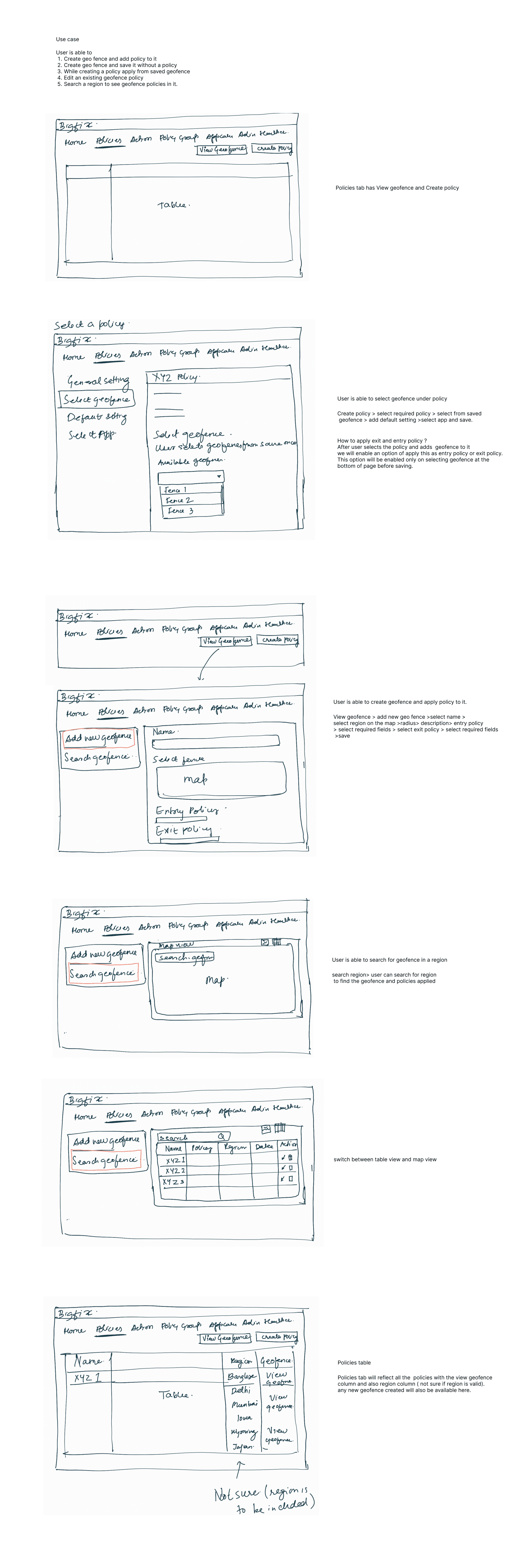
Everything an admin needed to do with a geofence, written down before any screens were drawn:
- Create a geofence and add a policy to it.
- Create a geofence and save it without a policy.
- While creating a policy, apply from a saved geofence.
- Edit an existing geofence policy.
- Deploy the geofence to devices, or add devices to a policy.
Conceptual sketches
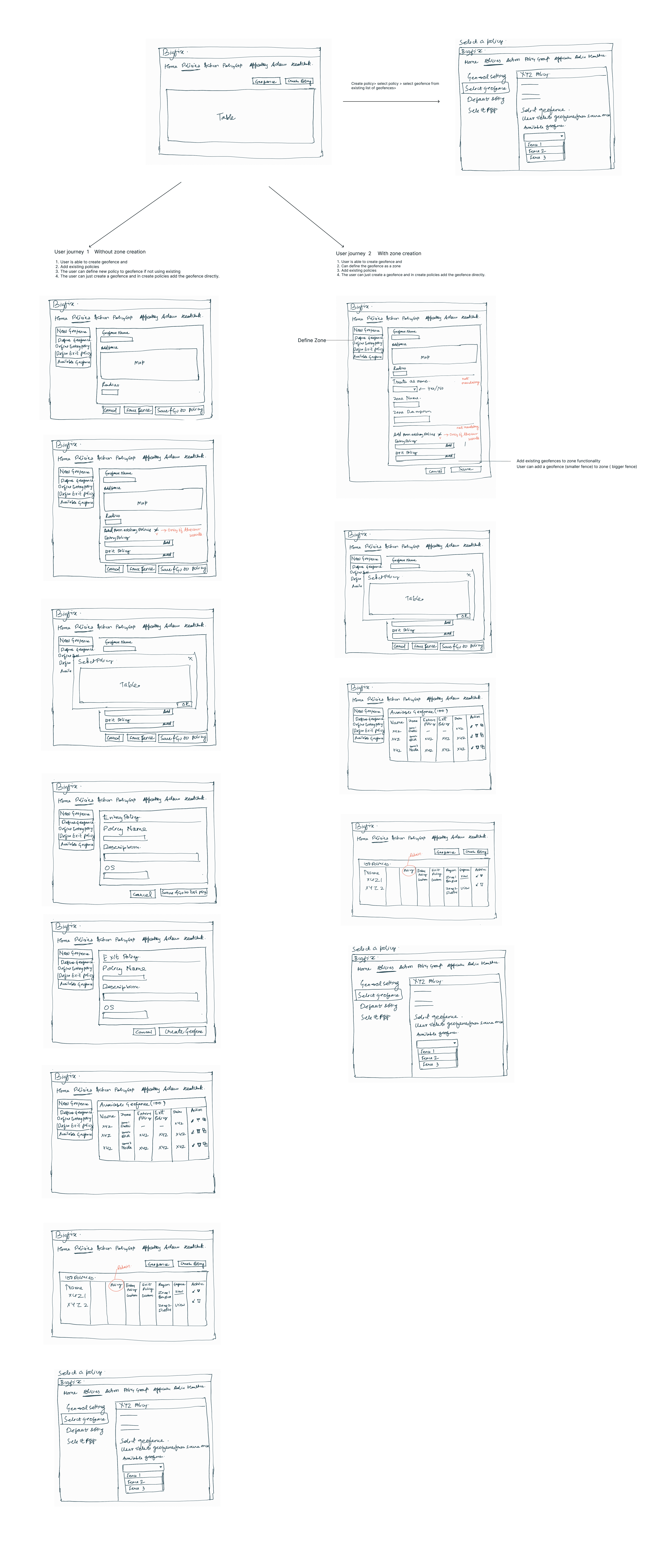
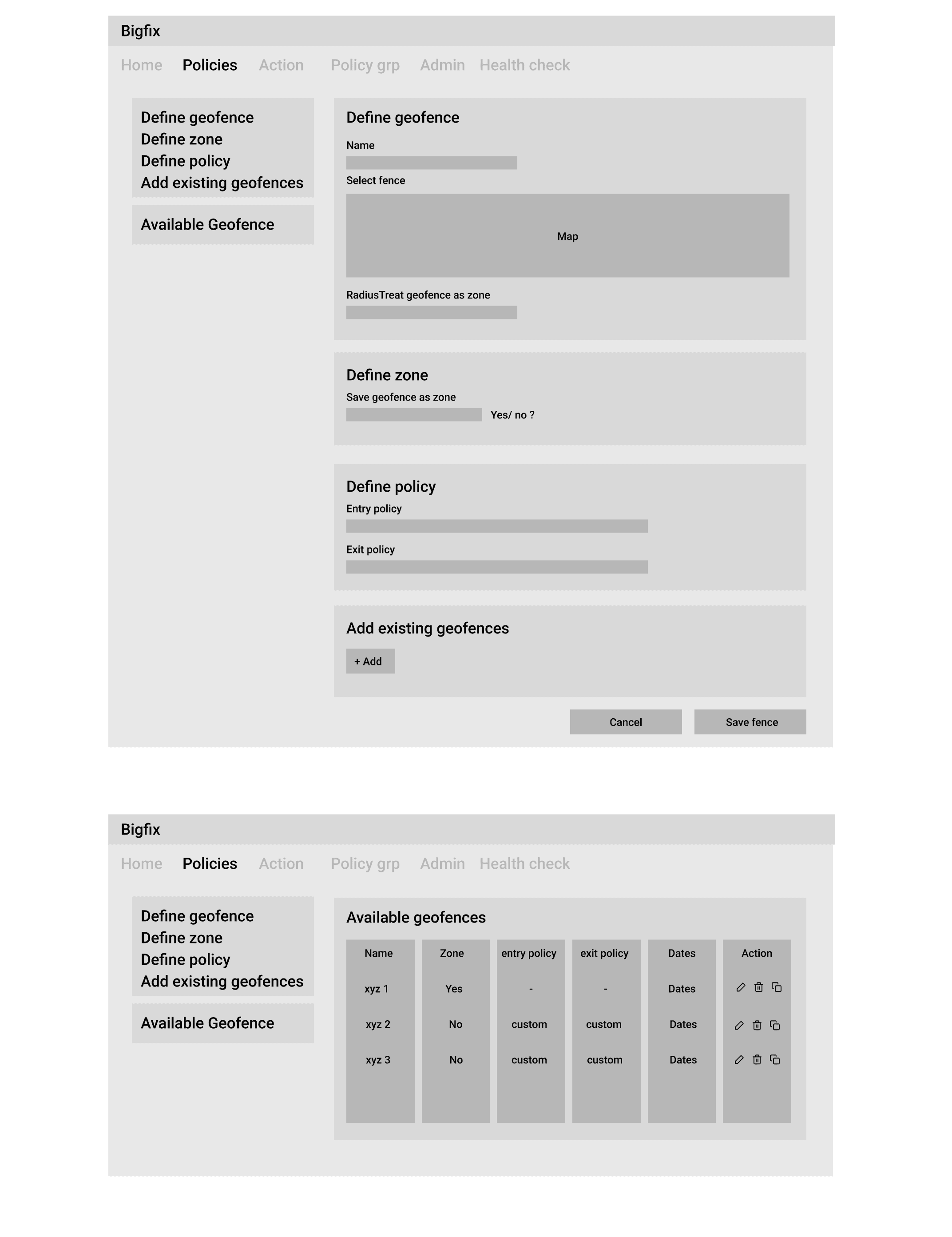
The thinking happened on paper first. I mapped the whole task and both user journeys by hand, then a first structured wireframe, before any of it turned into a real layout. Scroll each sketch to see the full page.
Decisions post reviews
Two decisions came out of the stakeholder reviews, and they shaped where the feature lived and how it was structured.
Feature placement
Placed Geofencing under the Admin tab instead of creating a dedicated navigation tab.
The feature combines both policies and actions, which makes it unsuitable to live exclusively under either module. The Admin section houses standalone administrative features that don't naturally fit into existing navigation, so it was the most intuitive and scalable location, avoiding a top-level tab for a single feature and leaving room for similar capabilities in the future.
Information architecture
Structured the feature into three independent sections: Manage Zones, Manage Settings, and Deploy Zones & Settings.
Geofence zones and settings are separate, reusable entities. Separating their creation from deployment lets administrators create a zone or a setting once and reuse them across multiple deployments, reducing repetitive configuration and supporting a more scalable workflow.
Final user flow
Manage Zones is a dedicated space to create and manage geofence boundaries. Manage Settings is a separate section to configure reusable policies, notifications, and device actions triggered by geofence events. Deploy Zones & Settings maps a selected setting to a specific geofence, since zones and settings are independent entities.
- Kept zones, settings, and deployment separate to improve reusability and reduce complexity.
- Used “Deploy” instead of “Manage” to match BigFix MCM's existing terminology, leveraging administrators' existing mental model.
Discussion and validation from stakeholders
Reviewing the early explorations with stakeholders surfaced what wasn't working, and each critique fed the final layout.
Final design solution
Three sections, one flow
The feature settled into three parts an administrator moves through in order: manage zones, manage settings, then deploy the two together.
Manage Zones
Combining zone creation and management into a single Manage Zones section, so administrators can both create new geofences and view or update existing ones in one place.
- Prioritised zone creation by placing the essential inputs (Name, Shape, and Search) above the map, while keeping all spatial interaction on the map.
- Positioned the search bar above the map so a searched location is immediately visualised and used to create a geofence.
- Displayed coordinates dynamically as an administrator draws, with map controls for Zoom, Delete, and My Location.
- Included a management table listing every geofence with its name, location, shape, status, associated settings, assigned devices, and last-modified details.
Manage Zones landing page: the existing geofence zones in a data table, with a Create Geofence Zone action.
Manage settings
Separating settings from zones so they can be created independently and reused across multiple geofences.
- A configuration flow where an administrator defines a setting once.
- Separate entry and exit configurations for Android and iOS policies, so devices behave differently when entering versus leaving a geofence.
- A Restore option on exit policies, letting an administrator revert to the original policy or apply a different one after a device leaves.
- Critical device actions such as Lock Screen, Reboot, Wipe, Lost Mode, and Factory Reset, to automate security responses based on device location.
Deploy zone and setting
The third section ties it together: pick a zone, pick one or more settings, name the mapping, and deploy. Deploying makes a mapping live, and its status reads enabled or disabled.
Deployed zone and setting data table. Navigate by clicking the action button to create a mapping.
Dashboard and devices page
Finally, the things an admin cares about surface where they already look. The home dashboard flags devices outside their geofence zones, and the Devices page carries each device's associated geofence setting, compliance status, and zones.
Jailbreak Detection
The gap
The requirement focused on post-detection actions but did not define the detection workflow itself. I worked backwards from the expected outcomes to design the end-to-end detection experience, exploring how devices would be scanned, when detection should occur, and how the workflow could integrate seamlessly into the existing product.
Research and limitations
Competitor products did not provide a dedicated UI for Jailbreak Detection, making it difficult to benchmark interaction patterns beyond basic device detection.
So I first mapped the end-to-end user flow to determine where the feature should live, how administrators would interact with it, and where the UI should be introduced within the existing MCM ecosystem.
Product flow
Talking through how an admin would actually use this, two journeys kept showing up: one where the compromised device is already known, and one where it has to be discovered by scanning first. I designed the feature so both paths were fully supported, so an experienced admin was never forced to scan when they already knew the answer.
Feature placement
Since Jailbreak Detection is an administrative security capability, I positioned it under the Admin module alongside Geofencing, ensuring it aligned with the product's existing information architecture and users' mental models. Reusing familiar navigation patterns reduced the learning curve and created a consistent experience for administrators.
User flow
The detailed flow shows the two ways to detect a jailbreak: acting directly on devices the dashboard already surfaces, or discovering affected devices by scanning, either on a schedule with policies and actions attached, or immediately as an instant check.
Early wireframes
I wireframed both journeys end to end before touching any visuals. The first board is the direct path, selecting a compromised device and choosing an action like quarantine. The other two are the scan-first path, where I worked through scheduling a scan, reviewing the results, and applying actions to whatever came back non-compliant.
Scenario one: the admin already knows, so they pick the device and apply an action directly.
Frequency, not recurrence
I initially explored allowing administrators to configure the scan frequency, choosing this terminology over recurrence because it better matched their mental model for background security checks. However, after evaluating the workflow, this approach was dropped in favor of a simpler experience. Instead, devices are scanned automatically in the background once every day by default, reducing configuration effort while ensuring regular security checks. For cases where immediate verification is needed, administrators can trigger an Instant Scan for a specific device, providing flexibility without adding unnecessary complexity to the primary workflow.
The scanning configuration I first designed: name it, set a frequency, target device groups.
Final design solution
Devices page
- Step 01 / 04
A Jailbreak Status column on the Devices page, with a hover for the failed checks.
- Step 02 / 04
Opening a compromised device shows the checks that failed, like a modified system image or root access.
- Step 03 / 04
Potentially compromised shows both sides, what failed and what still passed, so the admin can judge.
- Step 04 / 04
Filtering the list down to just the jailbroken devices across the fleet.
- Step 01 / 04
A Jailbreak Status column on the Devices page, with a hover for the failed checks.
- Step 02 / 04
Opening a compromised device shows the checks that failed, like a modified system image or root access.
- Step 03 / 04
Potentially compromised shows both sides, what failed and what still passed, so the admin can judge.
- Step 04 / 04
Filtering the list down to just the jailbroken devices across the fleet.
Direct scan Action
I initially explored configurable scan scheduling, but after discussions with engineering, we removed it in favor of automatic daily background scans, aligning with competitor products and reducing unnecessary configuration. For immediate verification, administrators can perform an Instant Scan on a specific device through the Actions menu.
Setting up enforcement
The part that stayed is compliance enforcement, where an admin decides what a jailbreak actually triggers. Everything lives in one list, and creating a setting walks through targeting device groups, choosing whether to act on compromised or potentially compromised devices, and picking the actions themselves.
- Step 01 / 03
Every compliance enforcement setting in one list, under the Jail Break section in Admin.
- Step 02 / 03
Creating a setting: name it, target device groups, and choose which devices to act on.
- Step 03 / 03
Pick the compliance actions: push notifications and device actions like Wipe and Unenroll.
- Step 01 / 03
Every compliance enforcement setting in one list, under the Jail Break section in Admin.
- Step 02 / 03
Creating a setting: name it, target device groups, and choose which devices to act on.
- Step 03 / 03
Pick the compliance actions: push notifications and device actions like Wipe and Unenroll.
Reflection
The result: retention of existing clients and the acquisition of two new federal customers.
Product thinking
I learned to question assumptions and simplify experiences by removing unnecessary configuration, ensuring users only interact with controls that provide real value.
Designing within constraints
Designing within a legacy product taught me that great UX isn't always about introducing new patterns. By understanding the existing design system and reusing familiar components, I learned how to improve usability while maintaining consistency across the product.
Domain knowledge
Designing security and endpoint management features required building a strong understanding of enterprise concepts, administrative workflows, and operating system behavior before making design decisions. This reinforced the importance of domain knowledge in creating effective product experiences.